
In this step, we'll configure a Receive Connector in Exchange Online to accept emails returning from Seclore EAP.
1. In 'Select your mail flow scenario' make the following selections:
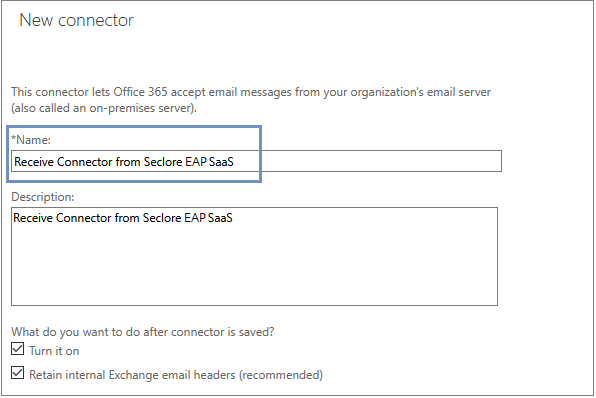
2. Name the connector 'Receive Connector from Seclore EAP SaaS'.
3. For 'How should Office 365 connect to your email server?', select 'By verifying that the IP address of the sending server matches one of these IP addresses that belong to your organization' and add the following IP addresses.
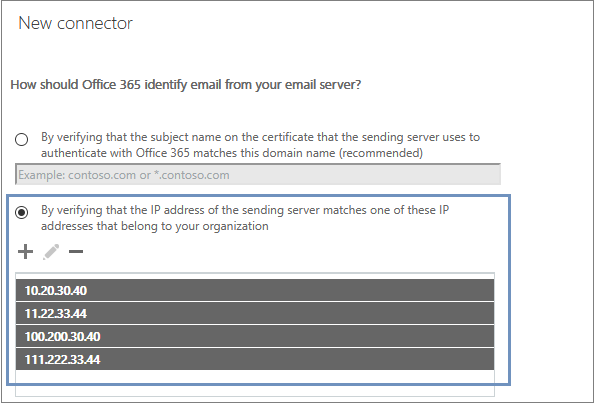
Note: The IP addresses shown here are for representation purpose only. For security reasons, Seclore will share it separately with you.
4. Verify the summary details on the screen, and save the receive connector configuration.
Proceed to Configuring Transport Rules
Go back to Configuring a Send Connector